
Wednesday, August 28, 2019
Measuring Between Holes in Autodesk Fusion 360
When you try and measure between the centers of holes, especially larger ones, it can be very frustrating trying to select the hole center. In this short video, I show you how to use the "Show Snap Points" option to make the job a snap.


Wednesday, July 10, 2019
Work Planes and Points Along a Path in Autodesk Fusion 360
The creation of work planes, for sketches, in the design of lofts in Autodesk Fusion 360 got a lot easier in the past few months with the introduction of the Plane Along a Path command located under the Construct drop-down menu. Along with the Point Along a Path command, modeling complex features sketches are a snap. Take a look at this short video and see just how easy placing complex work features along a path has become.


Sunday, June 30, 2019
Creating Custom Profile Coils in Autodesk Fusion 360
The Coil command in Autodesk Fusion 360 can only create four basic coil profiles. In my short video I show how to create a coil using any custom profile that does not intersect itself. The process is very intensive and Fusion 360 will act like it is locked up, be patient, it is only thinking.


Saturday, June 15, 2019
View Orbit in Autodesk Fusion 360
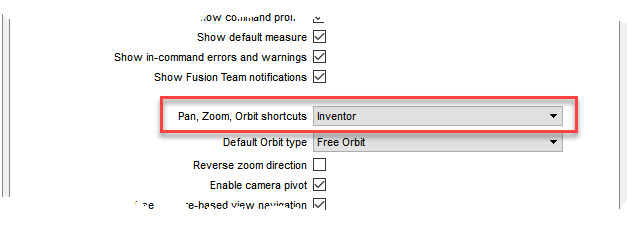
There are three methods you can use to orbit your model in Autodesk Fusion 360. If you have your Pan, Zoom, Orbit shortcuts set to "Inventor", you have a fourth method.
 In my short video, I cover these methods and explain options associated with each one.


Friday, March 22, 2019
Creating Conical Sheet Metal Components
Autodesk Fusion 360 does not provide a method for making conical sheet metal components but with the available tools and a little bit of surface work, the process can accomplished easily. In this short video I first create a simple sheet metal cone with its flat pattern. I then go back, in the timeline, and show you how to used the process to make a truncated cone that will produce a square edged flat pattern.
A special thanks to "TheCADWhisper", also known as "Top Daug" from the Fusion 360 forum for giving me inspiration into the methods outlined in this article.
UPDATE: Fusion 360 has added a new tool called Lofted Flange which makes the creation of a sheet metal cone very easy. In this video I go over the process of using this tool. If you desire to create an angled truncated cone, the process is also outlined in the video as it is a little different than the method outlined above.


Thursday, March 14, 2019
Creating Component Structure in Autodesk Fusion 360
Components are the building blocks of Autodesk Fusion 360 assemblies and sub-assemblies. Sooner of later you must create components from your sketches and bodies in order to use joints to create an effective assembly. There are four methods of creating components which I cover in a short video, all but the final method will work effectively. The ideal structure of a component is to have all bodies and their related sketches located under the component not split between the top level assembly and components. Below is a good example of this proper structure.


Saturday, March 2, 2019
Components and Their Applied Joints
I have heard many users of Autodesk Fusion 360 ask the question "How do I determine which components my assembly joints are applied to AFTER the assembly is finished?" Face it, we are all a bit lazy and probably do not do a good job of identifying our assembly joints by name or description. We find ourselves hunting around the joints folder trying to find the correct joint to edit or modify.
I have created a short video showing the process of determining what components are used by an assembly joint and vice versa determining the joint(s) applied to an assembly component. I also talk about how to manipulate the graphic display to better show your results.

I have created a short video showing the process of determining what components are used by an assembly joint and vice versa determining the joint(s) applied to an assembly component. I also talk about how to manipulate the graphic display to better show your results.

Subscribe to:
Posts (Atom)